CamCard - BCR (Western)
- 4.1
- Rating
- 50.00K
- Installs
- $0.99
- Price

 Analysis by App-foxy
Business cards are easy to collect and surprisingly hard to manage. I have often returned from an event with a pocket full of cards, only to forget who gave me which one, where we met, or why a follow-up mattered. CamCard - BCR (Western) approaches that problem as a practical business app: it turns a physical card into a digital contact and also supports a digital business card workflow. After using it, I see its real value less as a flashy scanner and more as a small part of a repeatable system for keeping professional contacts useful.
The app comes from INTSIG and sits in the Business category. It is aimed at people who still exchange paper cards but want their contact information available on a phone instead of scattered across drawers, notebooks, email threads, and camera photos. Its average rating is 4.1 from around 4.1 thousand ratings, which suggests a generally positive experience without implying that every scan or workflow will be effortless.
My main recommendation is simple: use CamCard as the capture stage, not as your entire relationship-management strategy. It is most helpful when I scan promptly, check the result, add context, and then move the contact into the place where I will actually remember to follow up. Used that way, it reduces clerical work. Used as a dumping ground for unreviewed scans, it merely creates a more digital pile.
You May Also Like

 Blood Strike: 2.5 Anniversary
Blood Strike’s Loadouts Turn Every Drop Into a Tactical Gamble
A close look at Blood Strike’s custom loadouts: how fast access to signature weapons reshapes its battle royale rhythm, rewards preparation, and narrows the gap between fights.

 Pandora - Music & Podcasts
Pandora’s Music Is Easy to Start, but Harder to Recover
Pandora’s strength is its low-effort path from a seed to a station. Its weak spot is how much confidence it asks you to place in connection, setup, and quiet recovery.

 8 Ball Pool
8 Ball Pool Is Built on Rivalries, Rematches, and Routine
A close look at the rivalries, rematches, shared routines, and unanswered safety questions that turn a quick pool match into a persistent mobile community.

 Samsung Music
Samsung Music’s Quiet Strength Is Playing What You Already Own
Its reach comes less from spectacle than from dependable access to a personal library. That simplicity is both the app’s strongest retention engine and its ceiling.

 AccuWeather: Weather Radar
AccuWeather Review: A Quick, Clear Forecast for Everyday Decisions
For everyday plans, the best forecast is the one you can understand quickly. AccuWeather makes rain timing, radar, and local conditions easy to act on, with a few trade-offs.

 Hill Climb Racing
Why Hill Climb Racing Still Turns Crashes Into One More Run
A tiny car, a bumpy hill and one more upgrade: Hill Climb Racing keeps resurfacing because its simple chaos makes every near-miss feel personal.
More From Our News Desk



Why the old business-card routine breaks down
Before opening the app, the usual alternative is familiar. I can photograph each card with the phone camera, type the details into Contacts, save an image in a folder, or leave the cards on my desk until I have time. Each method has a weakness. A photograph preserves the card but does not make the information easy to search. Manual entry is accurate when done carefully, but it is slow enough that I tend to postpone it. Saving everything to the phone book without context makes later conversations difficult to place.
That last problem is more important than it looks. A name and phone number are not the same as a useful professional memory. If I meet a supplier at a trade event, I need to remember the product discussed, the promised next step, and the reason the contact matters. CamCard can help me get the printed details into a structured form, but the human context still has to come from my own routine.
This is why I would not judge the app only by whether it recognizes text quickly. The better question is whether it helps me move from paper to an actionable contact with minimal friction. A scanner that saves a few seconds but leaves me with no follow-up habit is less valuable than a modest scanner used consistently.
Capture works best when I treat it as a two-step task
The basic workflow is straightforward: point the phone at a business card, let the app read the printed information, and review the resulting contact. In good lighting, with a flat card and clear typography, this is much more convenient than typing every field. It is especially useful when several cards arrive during the same meeting or event, because the phone becomes a temporary intake station rather than a camera roll full of unidentified images.
I would still avoid scanning while walking, in dim rooms, or with the card partly covered by a finger. Recognition is not a substitute for checking. Names, company names, email addresses, and phone numbers are precisely the fields where one wrong character can make a contact useless. My habit is to compare the most important fields immediately, rather than assuming the first result is correct.
A useful, less obvious trick is to decide in advance which fields deserve attention. If I expect to call someone, I verify the phone number first. If the purpose is a proposal or invoice, I check the email and company spelling. This keeps the review quick while protecting the information that will affect the next action.
Organization is where the app earns its place
A scanned card should not be considered finished merely because it appears in a digital list. I get more value when I add a short note while the meeting is still fresh. Even a phrase such as “asked about regional delivery options” or “send sample specifications” can save me from rereading the entire conversation later. The app handles the card details; I supply the meaning.
I also recommend scanning cards in batches only when I can process them afterward. A large event may tempt me to capture everything and promise to organize it later. That approach feels productive but often creates a backlog. A better routine is to scan a small group, correct the fields, add a note, and decide whether each person needs a follow-up. The point is not to own a perfect digital archive. The point is to make the next useful action obvious.
For people who maintain separate personal and professional contact spaces, this distinction matters. A business-card scanner is not automatically a replacement for the phone’s Contacts app, a customer database, or a task manager. I see CamCard as the place where information enters my system. After that, I choose whether the contact belongs in my address book, a work directory, or a project-specific follow-up list.
A digital card can reduce the paper coming in
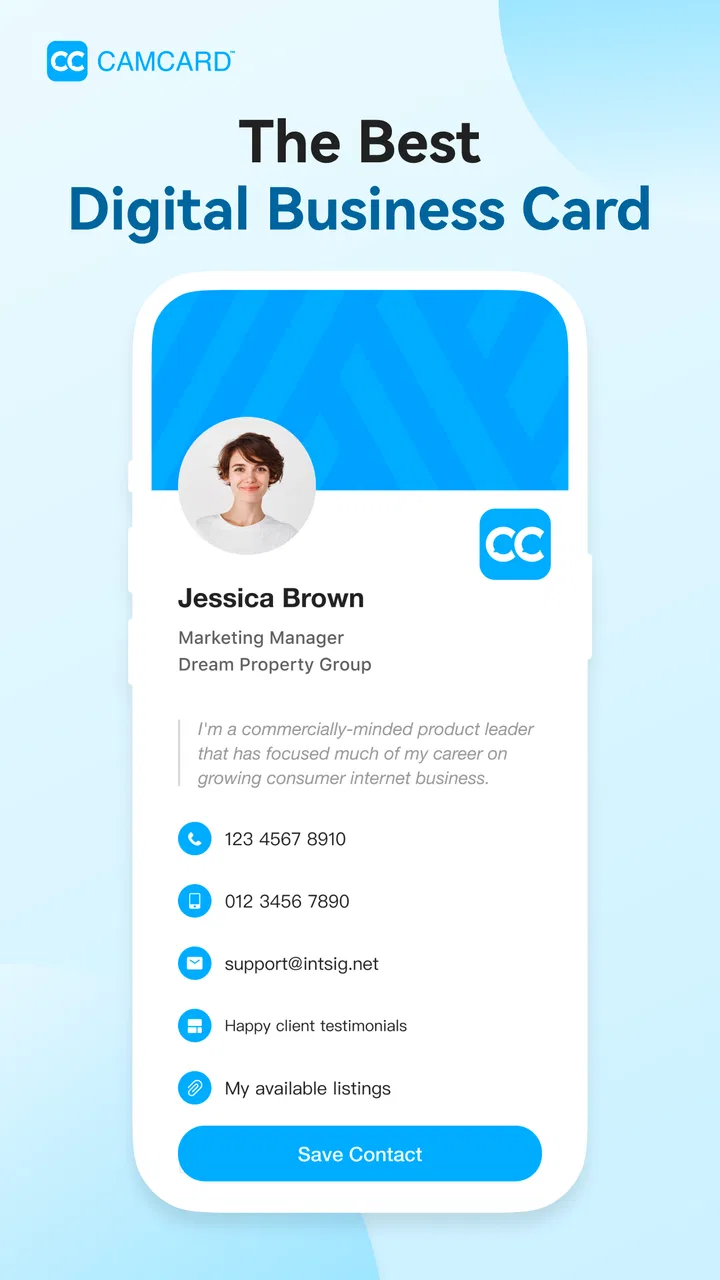
The digital business card side is valuable for a different reason. Scanning helps after someone hands me paper; sharing a digital card can prevent paper from being created in the first place. That makes the app more useful in a sustainable workflow, especially for people who attend frequent meetings and dislike carrying stacks of cards back to the office.
There is a practical trade-off here. A paper card is easy to hand over to anyone, while a digital exchange depends on the other person being comfortable receiving and saving contact information electronically. I would not abandon paper entirely for every audience. Instead, I would use the digital option with people who prefer phone-based networking and keep a simple fallback for situations where a physical card is still expected.
The strongest approach is to make the digital card consistent with the information I actually want to share. If my role, phone number, or email changes, an outdated card can be more confusing than no card at all. I would review the details before an event rather than discovering the problem while trying to introduce myself.
Building a repeatable contact routine
The app becomes much more effective when I give it a fixed place in my week. My preferred routine begins immediately after a meeting: I scan the card, correct the key fields, and write a short reminder about the conversation. Later, during a scheduled review, I decide what deserves a reply, a calendar reminder, or no further action. This separation keeps the event itself focused while preventing contacts from disappearing into storage.
For a small business owner, the routine could happen at the end of each workday. For a salesperson, it may fit after each appointment. For a freelancer, a weekly review may be enough if the volume is low. The right schedule depends on how quickly the information loses meaning. A card from yesterday still has context; a card from several months ago may require detective work.
I find it helpful to use a simple decision process for every scan:
Check the name, company, and the detail most likely to be used next.
Add one sentence explaining where the contact came from or what was discussed.
Choose a next action, such as replying, calling, sending material, or simply keeping the contact.
Move the action into the task or calendar system I already use.
This process avoids a common mistake: expecting the scanner to remember the relationship for me. CamCard can reduce data entry, but a follow-up still needs a time and an owner. If I leave the next step inside a note that I never revisit, the workflow has stopped halfway.
Three workflows where I found it especially practical
The first is event triage. Instead of trying to have a complete conversation and manually type details at the same time, I capture the card and write a quick identifying note. Later, I can separate promising contacts from polite exchanges. This is useful when a single event produces more cards than I can reasonably process in one sitting.
The second is supplier and service-provider management. A card may contain a general office number, a direct line, and a website, but the detail I need later is often the person’s role. Adding that role during capture helps me avoid calling the wrong department. I would not rely on the printed card alone for this; I would record the specific reason I might contact that person.
The third is temporary project networking. Some contacts matter only for a particular launch, renovation, conference, or client request. Rather than mixing every card into a permanent personal list without explanation, I can use a project note or an external project system to preserve the connection’s purpose. When the project ends, I can decide whether the relationship deserves a longer-term place.
A fourth use is contact recovery. If I have kept old cards in a drawer, scanning them can make the information accessible again. I would process those cards selectively instead of digitizing every piece of paper automatically. An outdated contact list is not improved by adding more entries that I will never recognize.
Where CamCard can slow me down
Recognition quality depends on the card itself and the capture conditions. Decorative type, unusual layouts, low contrast, glare, folds, and handwritten additions all increase the chance that I will need to correct the result. That is not a serious flaw in the concept, but it changes the time calculation. For a single card, manual entry may sometimes be faster than photographing, waiting, and checking.
There is also a privacy consideration that I take seriously with any app handling professional contact information. I avoid scanning sensitive notes or documents that are not actually business cards, and I review entries before sharing them elsewhere. A contact database can contain personal phone numbers and private email addresses, so convenience should not replace ordinary care about what I store and who can access it.
The pricing also deserves attention before committing to a long-term workflow. CamCard is listed at $0.99, while in-app purchases range from $3.49 to $399.99 per item. That wide range means I would inspect the purchase screen carefully and distinguish between the basic app cost and any optional services or larger plans. Someone who only scans an occasional card may find the initial price reasonable, but a team or heavy user should understand the ongoing cost before making it central to business operations.
The app is rated for Everyone, and it supports devices using operating system version ten or newer. That makes it approachable for many users, but compatibility still matters in a workplace where older phones remain in circulation. I would check the device requirement before asking a whole team to standardize on it.
How it compares with ordinary alternatives
The phone camera is the simplest competitor. It costs nothing extra in practice and preserves the visual design of every card, which can be useful when the layout itself contains information. Its weakness is retrieval: a photograph does not automatically become a clean, searchable contact workflow. CamCard is better when I need structured details rather than an image archive.
Manual entry into the phone’s Contacts app is the accuracy-focused alternative. It gives me direct control and avoids relying on recognition, but it takes longer and encourages postponement when several cards arrive together. I prefer manual entry for an important contact with unusual details, while I use scanning to handle the first pass and then correct what matters.
A spreadsheet is another common approach. It can be excellent for team ownership, custom columns, and simple reporting, but it is not pleasant for quickly capturing a card in the middle of a conversation. CamCard is more natural at the intake stage; a spreadsheet or customer-management tool may be better once the relationship needs shared responsibility, sales stages, or detailed history.
Dedicated customer-management software is the stronger choice for a sales team that needs permissions, pipelines, assignment, and reporting. I would not choose a card scanner alone as the central system for a large operation. For an individual consultant, contractor, recruiter, or small business owner, however, the lighter workflow may be easier to maintain precisely because it does not demand a full sales process for every contact.
Who should adopt it, and who should skip it
I think CamCard is a good fit for people who regularly receive physical cards and want a faster bridge into their digital contact habits. Event attendees, independent professionals, recruiters, property specialists, consultants, and small business owners are likely to understand its value quickly. It is also useful for anyone who has already accumulated cards and wants to process them gradually rather than type every detail from scratch.
I would be more cautious if I rarely exchange cards, already use a well-maintained customer-management platform, or need strict team-wide control over contact records. In those cases, the scanner may add another layer instead of simplifying the system. Someone who is highly concerned with perfect transcription may also prefer manual entry for every important contact.
The app is not the right answer for people looking for a full relationship manager, a project tracker, or a replacement for thoughtful follow-up. It can support those systems, but it does not remove the need to decide which relationships matter and what should happen next. That limitation is actually helpful to recognize before installation, because it prevents unrealistic expectations.
My final assessment after fitting it into real work
CamCard - BCR (Western) is a focused business utility with a sensible role. It reduces the awkward gap between receiving a paper card and having usable digital contact information. Its best qualities appear when I capture promptly, inspect the important fields, add context, and send the next action to the tool where I already manage my work.
The developer, INTSIG, has positioned it for a broad audience, and the app has been available since February 9, 2010, with current version 7.89.5.20260807. It has over 50 thousand installs, enough to show that the basic problem is familiar to many users. Those figures do not change my practical conclusion: the app is worthwhile when paper cards are a recurring part of my work, but unnecessary if my contacts already arrive digitally and are organized well.
I would try it for a week using a deliberately small routine: scan only new cards, verify the fields I will use, write one context note, and schedule follow-up elsewhere. If that removes friction without creating another inbox, it has earned a place in the workflow. If I still postpone reviewing scans, the issue is not the absence of another feature; I need a simpler contact habit.
My honest view is that this is a useful bridge rather than a complete destination. The digital business card option can reduce paper exchange, the scanner can save repetitive typing, and the organization step can make professional contacts easier to recognize later. But the lasting benefit comes from what I do after capture. For a sustainable productivity system, the winning move is not scanning more cards; it is turning the right cards into clear, timely relationships.
FAQs for CamCard - BCR (Western)
01What is CamCard - BCR (Western) used for?
CamCard - BCR (Western) is a business card scanning and contact management app. It uses your phone’s camera and optical character recognition to capture names, companies, phone numbers, email addresses, websites, and other card details. After scanning, you can review and edit the information, organize contacts, search your collection, and share or export details when needed.
02How accurate is CamCard’s business card scanning feature?
The scanning results are generally useful, but accuracy depends on the card’s design, lighting, print quality, language, and how steadily you hold the phone. Clean, flat cards with high contrast usually produce the best results. You should always check the recognized information before saving it, especially email addresses, phone numbers, job titles, and company names, because unusual fonts or layouts may require manual corrections.
03Does CamCard - BCR (Western) support multiple languages and international cards?
CamCard - BCR (Western) is designed primarily for Western business card formats and supports recognition for several commonly used languages, although the exact experience can vary by version and device. Cards with complex layouts, non-Latin scripts, vertical text, or unusual symbols may not scan perfectly. If you regularly handle cards from different regions, review the supported languages in the app before relying on automatic recognition.
04Can I export or synchronize contacts scanned with CamCard?
The app provides contact-management options that can help you keep scanned business cards organized and make the information available beyond a single scan. Depending on the version, account status, and platform, available options may include synchronization, sharing, backups, or exporting to other contact services. Before importing a large collection, check the current settings and review how duplicate contacts are handled.
05Is CamCard - BCR (Western) free to use, and are there any privacy concerns?
CamCard may offer a free download with limits or optional paid features, and the available tools can differ between Android and iOS versions. Because scanned cards contain personal and professional information, privacy deserves attention: review the app’s permissions, account requirements, cloud-sync settings, and privacy policy before uploading or synchronizing contacts. Avoid scanning sensitive information unless you understand how it is stored and processed.
Pros
- Scans business cards quickly with reliable text recognition.
- Supports multiple languages for international contacts.
- Lets you add notes and reminders to contact records.
- Exports contacts for use in other address books and tools.
- Offers cloud backup to help keep cards available across devices.
Cons
- Some advanced features require a paid subscription.
- Recognition accuracy can drop with blurry or unusual card designs.
- Cloud syncing may require account registration and internet access.
- The interface may feel dated compared with newer contact managers.
- Imported contacts may need manual cleanup after scanning.

CamCard - BCR (Western)
Gallery